Presenting
Any rectangle, in any meeting app.
Meeting apps share a whole screen or one window. Clowd lets you share any rectangle you draw, in Teams, Zoom, Meet or anything else.
How it works
Three steps, then you’re presenting.
Draw a rectangle.
Start from the tray, a hotkey or the capture overlay, then drag around what you want to show.
Pick it in your meeting app.
Choose Clowd Shared Region in the meeting app’s window picker, like any other window.
Present.
A border marks what the meeting sees. Your controls sit outside it, so they never show.
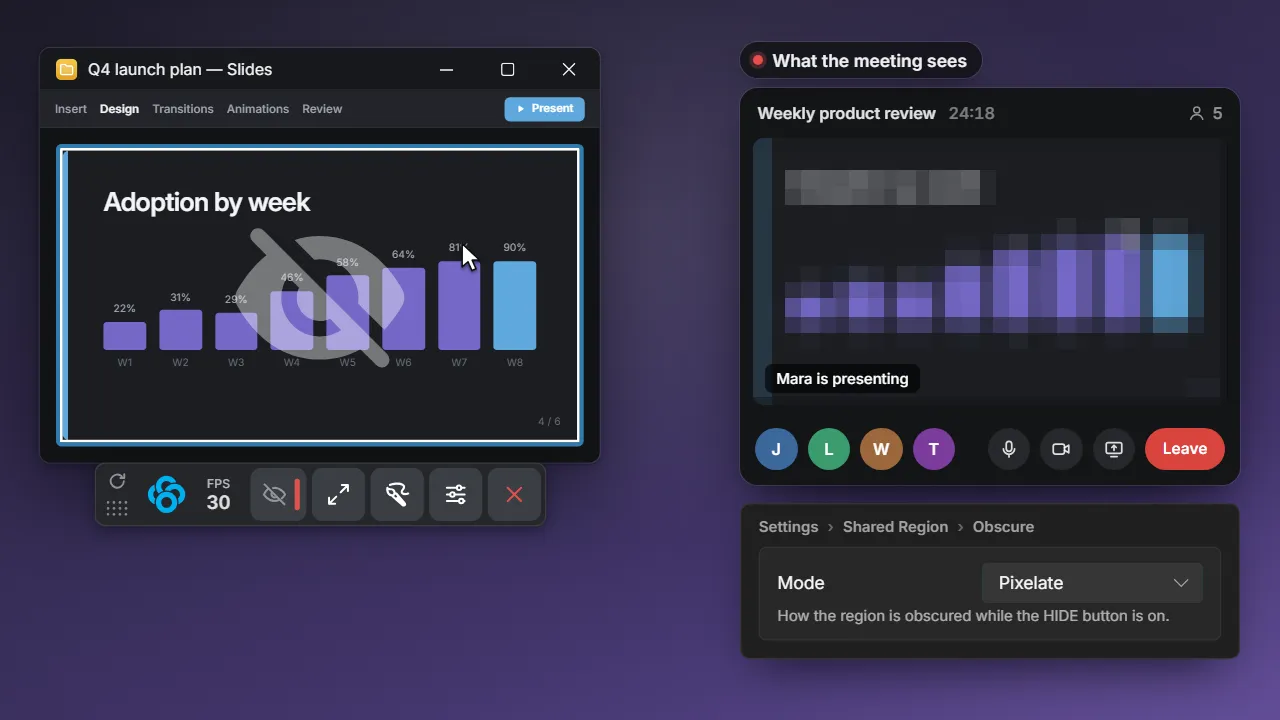
Panic button
Hide it without ending the share.
One click blurs, pixelates or blacks out what the meeting sees, while you still see everything. The share never stops.
Reframe live
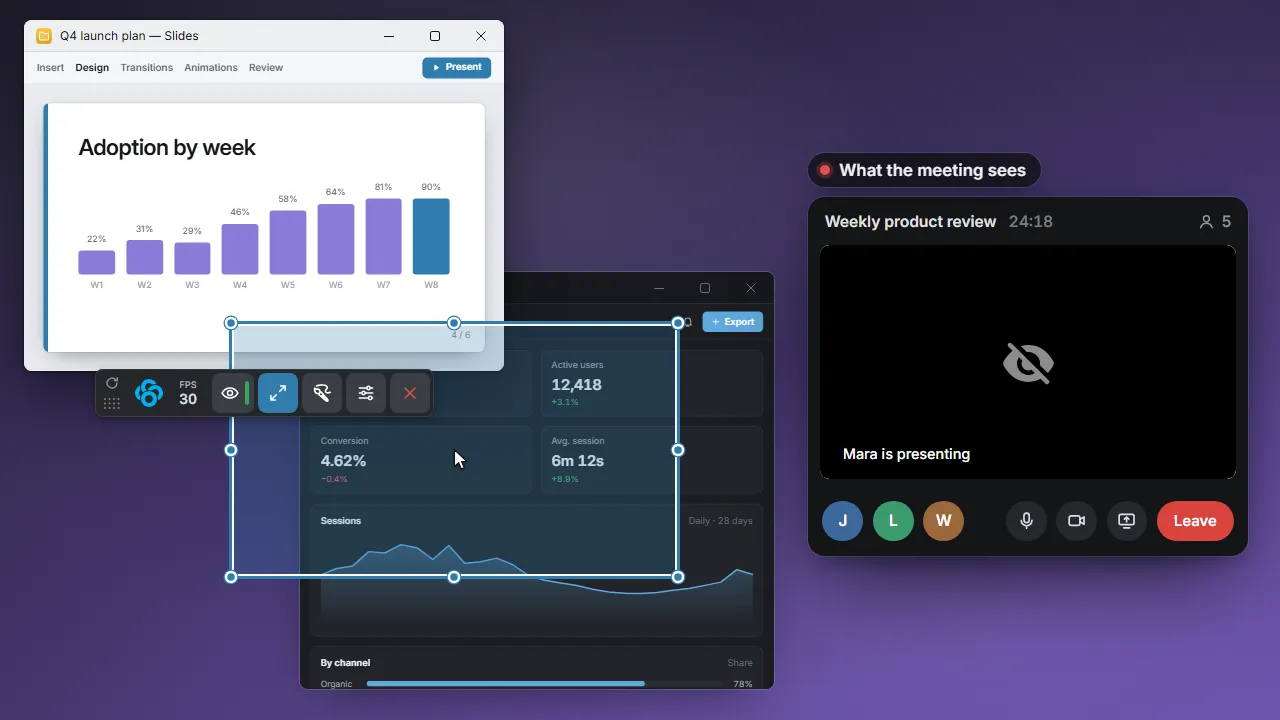
Move it mid-meeting. Nobody re-shares.
Drag the region somewhere new or pull a corner. The meeting keeps the same window, so nobody has to pick anything again.
The share toolbar
Every control, outside the frame.
A clear border shows exactly what the meeting sees. The toolbar floats beside it, so your controls never end up in the share.
- Grip. Move the toolbar.
- FPS. The measured frame rate, updated every second.
- Hide / Show. Obscure the share without stopping it. The light is green while the meeting can see the region and red while it is hidden.
- Resize. Move or resize the region. The meeting keeps the same window.
- Draw. Opens Draw on Screen.
- Options. Opens the Shared Region settings.
- Stop. Ends the share and closes the mirror window.
Draw on screen
Point at things. The meeting sees it.
Draw arrows and highlights right on the region, and everyone in the meeting sees them. The drawing toolbar stays out of the share.
More about Draw on ScreenHow Clowd compares.
Share the part that matters.
Free and open source. Windows and macOS.