Recording
Studio recording from your system tray.
Record once, decide later. Your screen, webcam, microphone and system audio land on separate tracks, ready to polish in the editor.
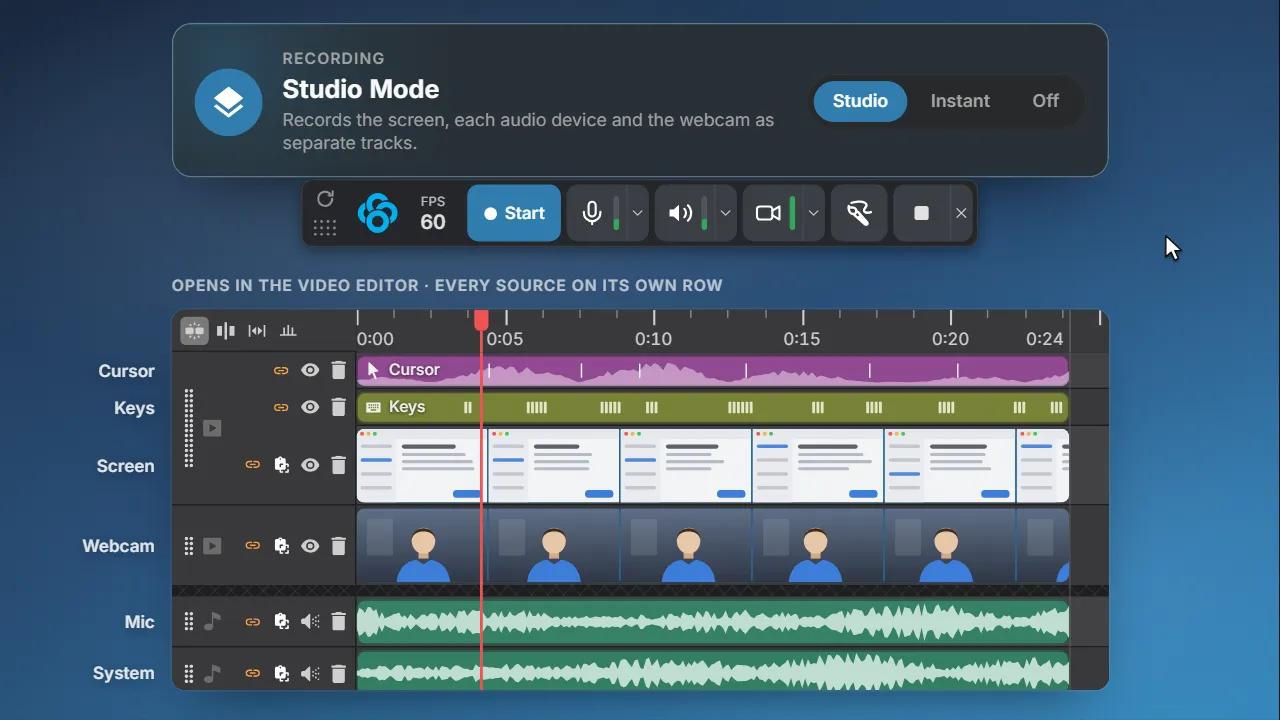
Separate tracks.
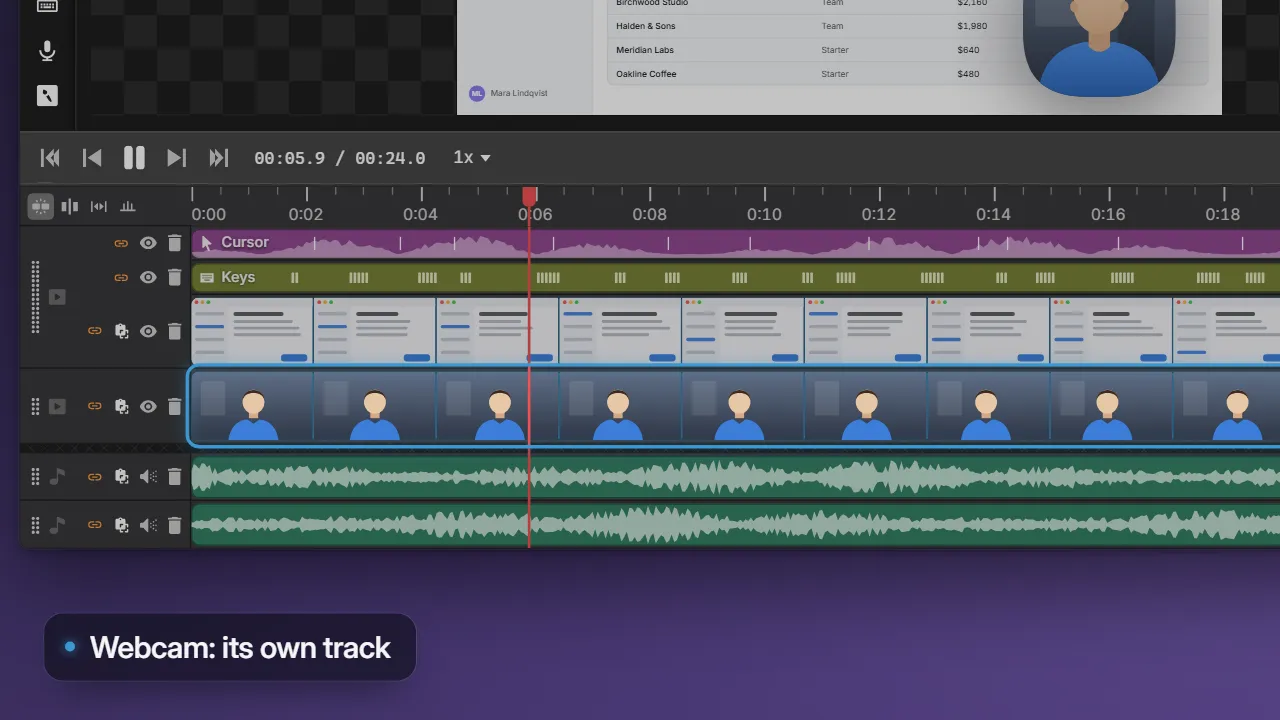
Screen, webcam, mic and system audio, each on its own row.
Cursor you can restyle.
Change the cursor, clicks and keystrokes after you stop.
Up to 240 fps.
Smooth enough for fast-moving demos, with a live frame counter as you record.
Two modes
Studio or Instant. Your call.
Studio records every source as its own track and opens the result in the editor. Instant records one video that is ready to share the moment you stop.
- Pause as often as you like, with no gaps to trim
- Record in MP4, or MKV that survives a crash
Studio tracks
Every source on its own track.
A Studio recording opens with the screen, webcam, microphone and system audio on separate rows. The cursor and keystrokes come along too, so you can change how they look after the fact.
- Swap, resize or hide the cursor later
- Show your shortcuts as on-screen keycaps
- Place the webcam wherever you like
Start
One key to record.
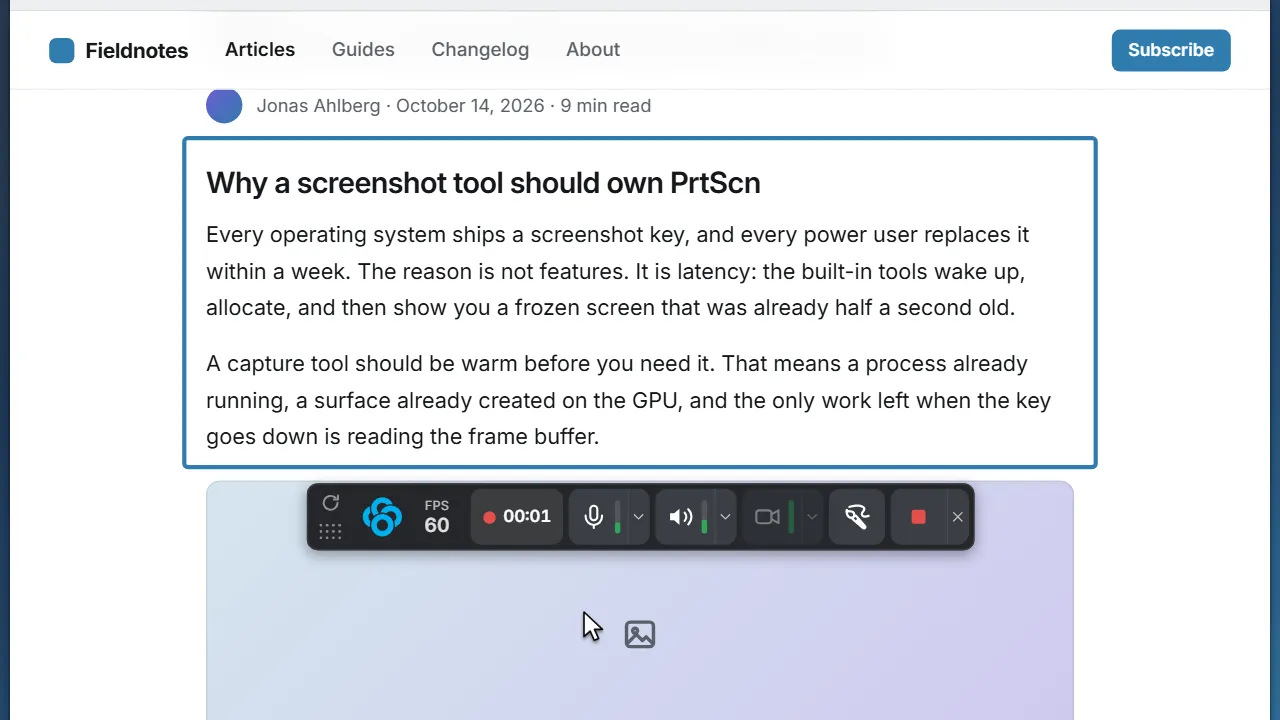
Press Shift+PrtScn and drag a region, or press V in the screenshot overlay to turn a selection into a recording. The same keys finish it.
- Region, window or whole screen
- The frame never shows up in the video
- Every hotkey can be rebound
The toolbar
Every control on one strip.
It sits beside the region you are recording, never inside it.
Grip
Drag the strip anywhere. The rotate cell turns it vertical.
Frame rate
Click to switch between 30, 60 and 120 fps.
Start, timer, pause
Start, then watch the clock. Hover it to pause.
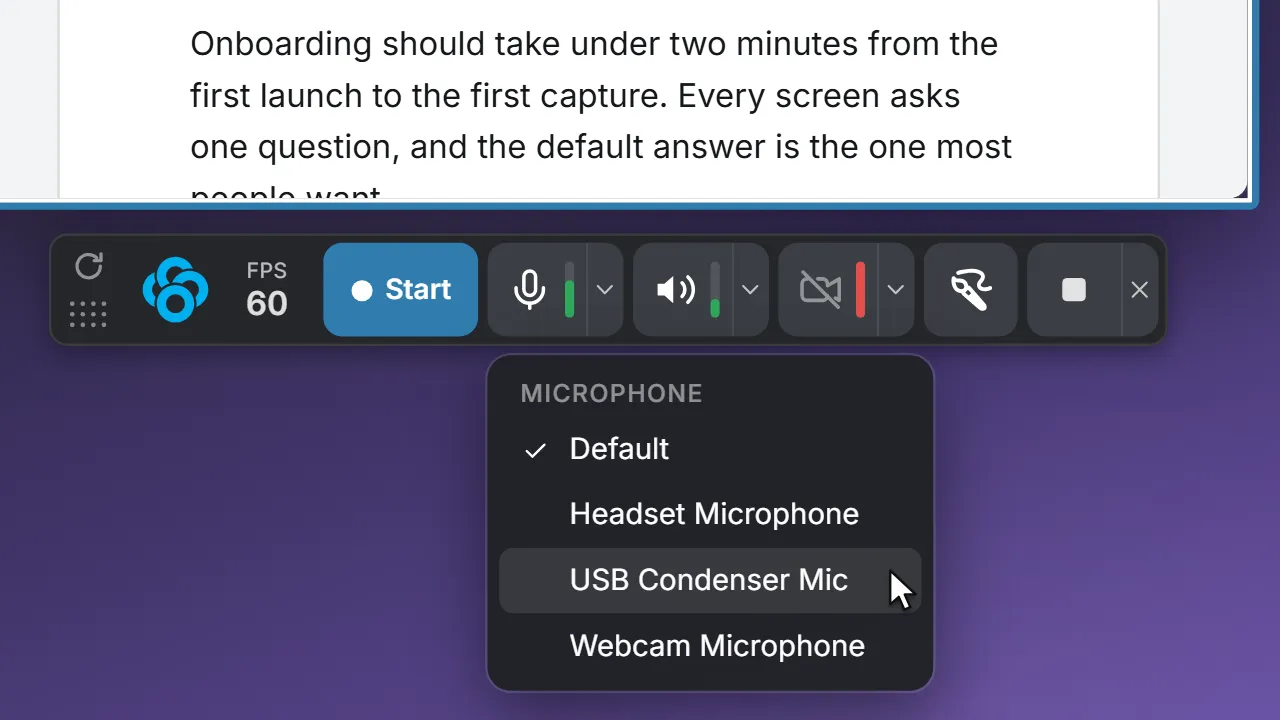
Microphone
A live level meter, a one-click mute and a device picker.
System audio
What your computer plays, with its own meter and device picker.
CameraStudio
Adds your webcam as its own track.
Draw
Mark up the screen while you talk.
Finish or cancel
Stop and save, or the small X to throw the take away.
Set it up on the strip, not in a dialog.
Pick your microphone, check your levels, turn on the camera and set the frame rate before you start. Mute or pause mid-take with one click.
GIFs
Any recording, as a GIF.
Every recording in Recents has a Create GIF button. Pick smooth, balanced or small, and the GIF lands right next to the original.
How Clowd compares.
Free. Open source.
Record with separate tracks, then polish it in the editor.