Screenshots
The PrtScn you wish Windows shipped.
Press PrtScn and the screen freezes. Snap to a window in one click or zoom in to the exact pixel, then take it anywhere in Clowd with a single key.
Opens instantly. The screen is frozen and ready the moment you press the key.
Owns PrtScn, even on Windows 11, where the Snipping Tool wants the key.
One key per action. Enter edits, Esc backs out one step at a time.
Window capture
Click a window, get the window.
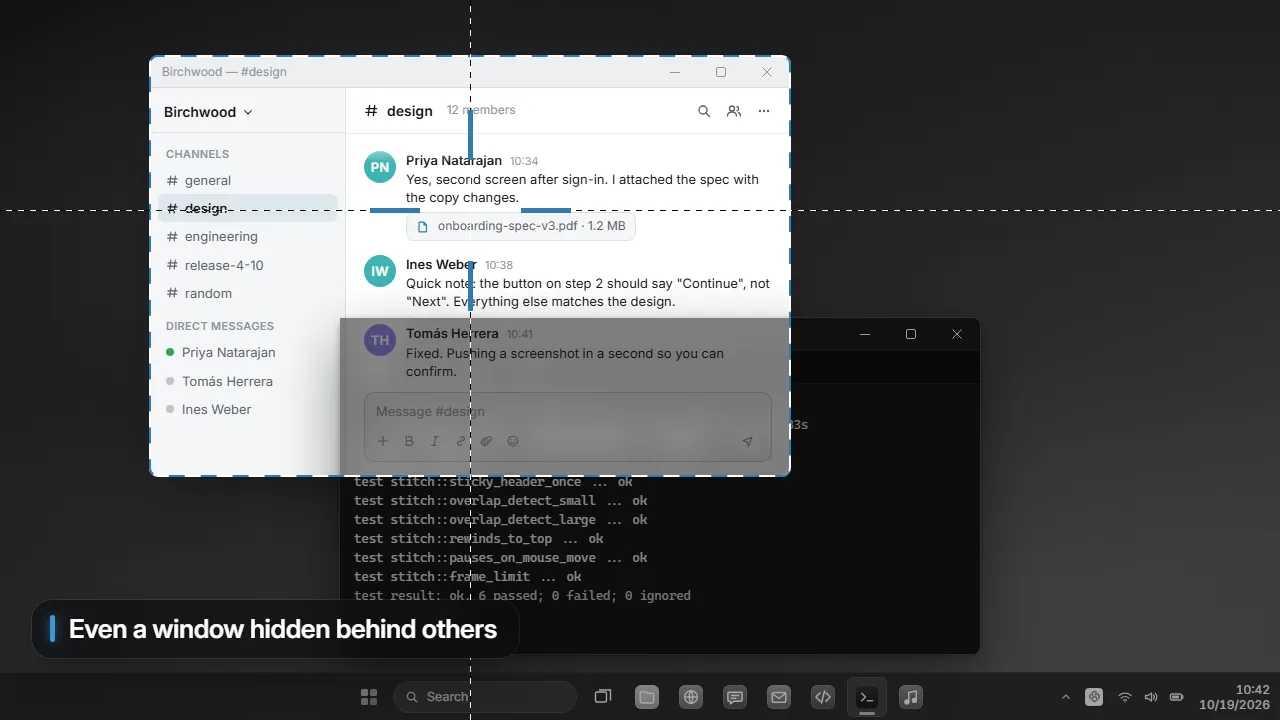
Hover and the window under the cursor lights up. Click it and you get exactly that window, rounded corners and all.
- Clean corners. No slivers of wallpaper behind the rounded edges.
- Sees behind other windows. Grab a window whole, even when something is covering it.
- Whole screens in one key. F for the monitor under the cursor, A for all of them.
Magnifier
Pixel-perfect selections.
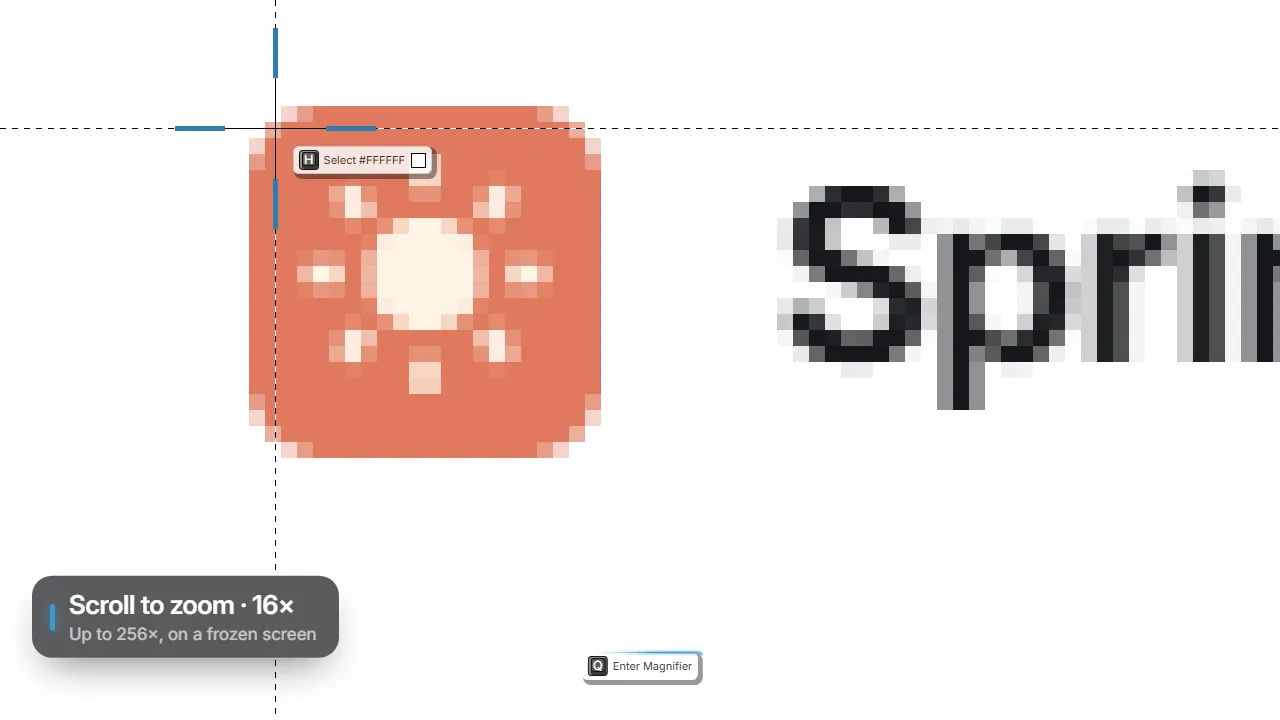
Scroll to zoom the frozen screen, all the way to 256×, and put the edge on the exact pixel. The pointer slows down as you zoom, so it lands where you mean.
- Size as you drag. The width and height follow your cursor.
- Cursor in or out. M decides whether the mouse pointer is in the shot.
The toolbar
One toolbar, every next step.
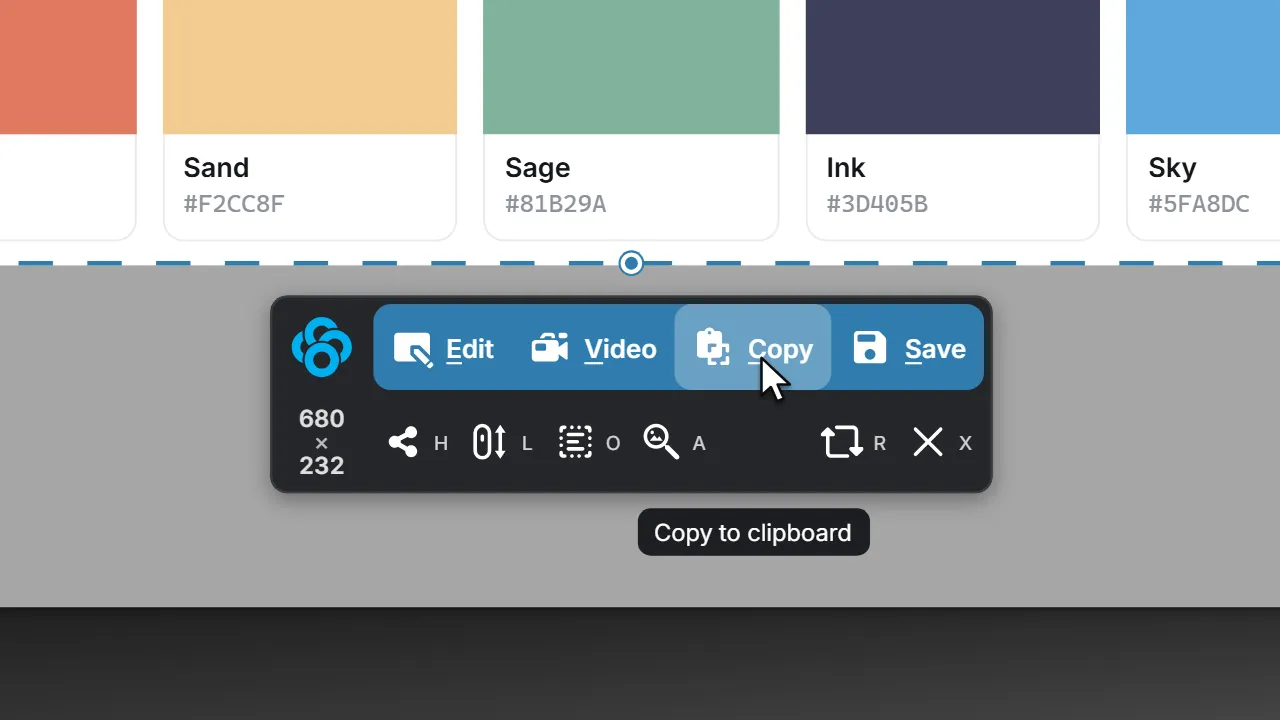
Release the mouse and the toolbar lands beside your selection. Annotate it, record it, copy it, save it or share it, each with a single key.
Always there
Row one is the accent group: the four things you do most.
- EditOpens the capture in the image editor. Enter does the same.“Open image editor”E
- VideoRecords this exact region as a screen recording.“Record screen video”V
- CopyPuts the image on the clipboard and closes the overlay.“Copy to clipboard”C
- SaveSaves the image to your captures folder.“Save image to a file”S
- ResetClears the selection so you can start over.“Reset selection”R
- ExitCancels. Esc backs out one step at a time.“Cancel and exit”X
Optional
Each can be switched off in Settings → Capture.
- ShareMirrors the region into a window your meeting app can share.“Share region to meeting app”H
- ScrollScrolls the window for you and stitches one tall image.“Capture scrolling content”L
- OCRReads the text in the selection, ready to copy.“Recognize text (OCR)”O
- SearchFinds where the image appears on the web.“Reverse image search on the web”A
Shortcuts
Skip the drag when you know what you want.
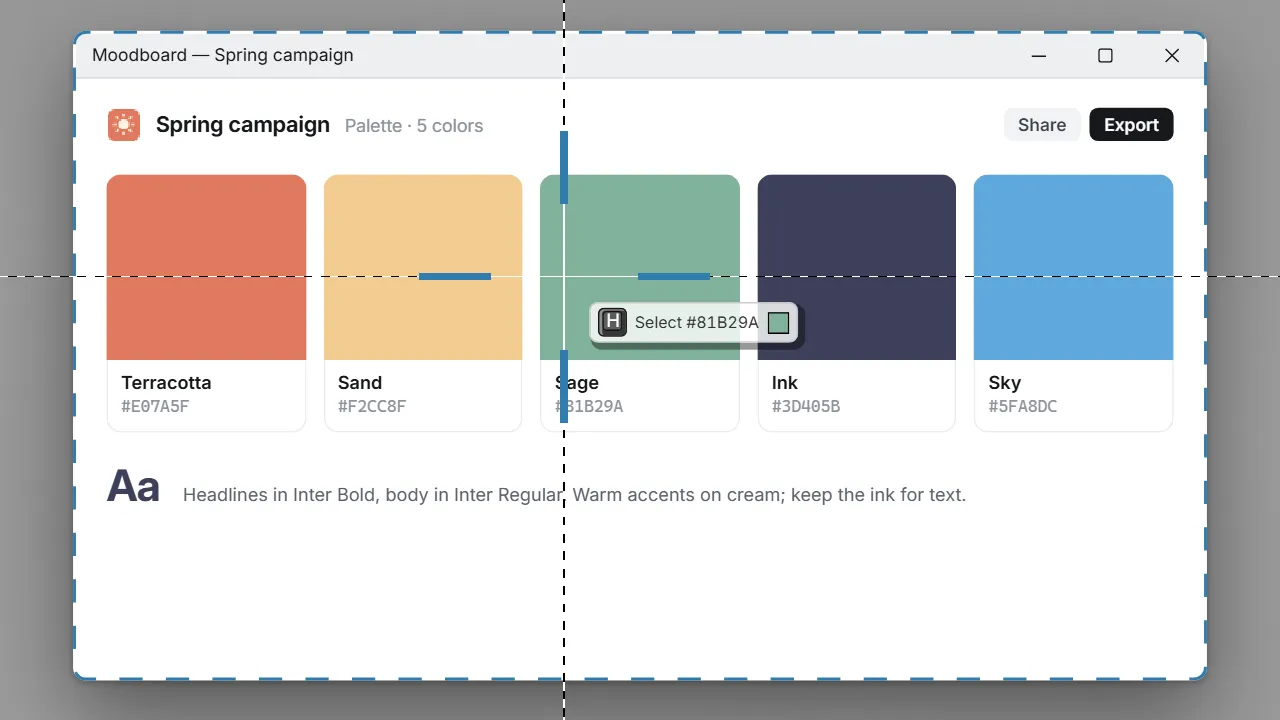
Two hotkeys open with the selection already made, and one key picks any color on screen.
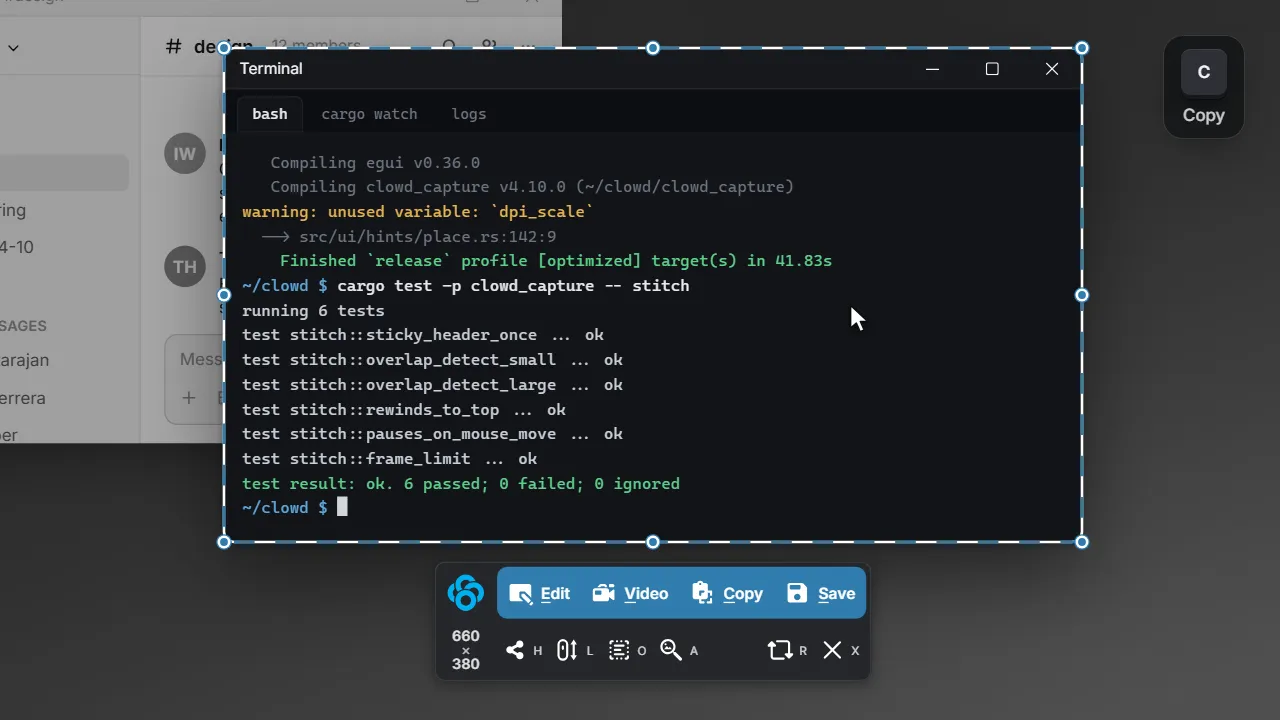
Ctrl+PrtScn grabs the screen you’re on.
Alt+PrtScn grabs the window you’re in. Press C and it’s on your clipboard.
H on any pixel copies its color as HEX, RGB or HSL.